


Why We Launched This Feature?
This new feature provides several important benefits for students and educators:
- ✓ Streamlines the sign-in process — students no longer have to decide which login option to select and will access the same account and saved work.
- ✓ Enables reporting in CFNC ProTools whether a student signs in with CFNC or NCEdCloud credentials.
- ✓ Ensures students retain access to their Career Development Plans (CDPs) and other work saved in NCcareers.org after graduation.
What is CFNC ProTools?
CFNC ProTools is the reporting system for NCcareers.org. Every student should have a CFNC.org account that includes their Student ID number.
What Can I and My Students Expect Now That This Feature Is Live?
For most students, the transition is seamless. In some cases, students may have completed work under both login types, resulting in two separate NCcareers.org accounts where different information may have been saved.
If a student has separate NCcareers.org accounts connected to the same Student ID (one through CFNC and one through NCEdCloud), they will see a "Multiple Accounts Found" message and will be asked to choose which account to keep.
Once accounts are connected, students will have the option to sign in with either CFNC or NCEdCloud credentials and access all of their information. Educators will see all of the student's work in CFNC ProTools.
Which section applies to my student?
My Students Only Used CFNC Credentials to Access NCcareers
Good News — They're Almost Ready
With this new feature, students will now be able to sign in with either their CFNC or NCEdCloud credentials, as long as their Student ID is on file in their CFNC account.
What You Should Do Now
Ask each student to verify that their Student ID is saved in their CFNC profile. Here's how:
Student signs in to CFNC
Have the student go to CFNC.org and sign in using their CFNC username and password.
Student navigates to "My Profile"
Once signed in, the student should click the profile icon in the top right and select My Profile.
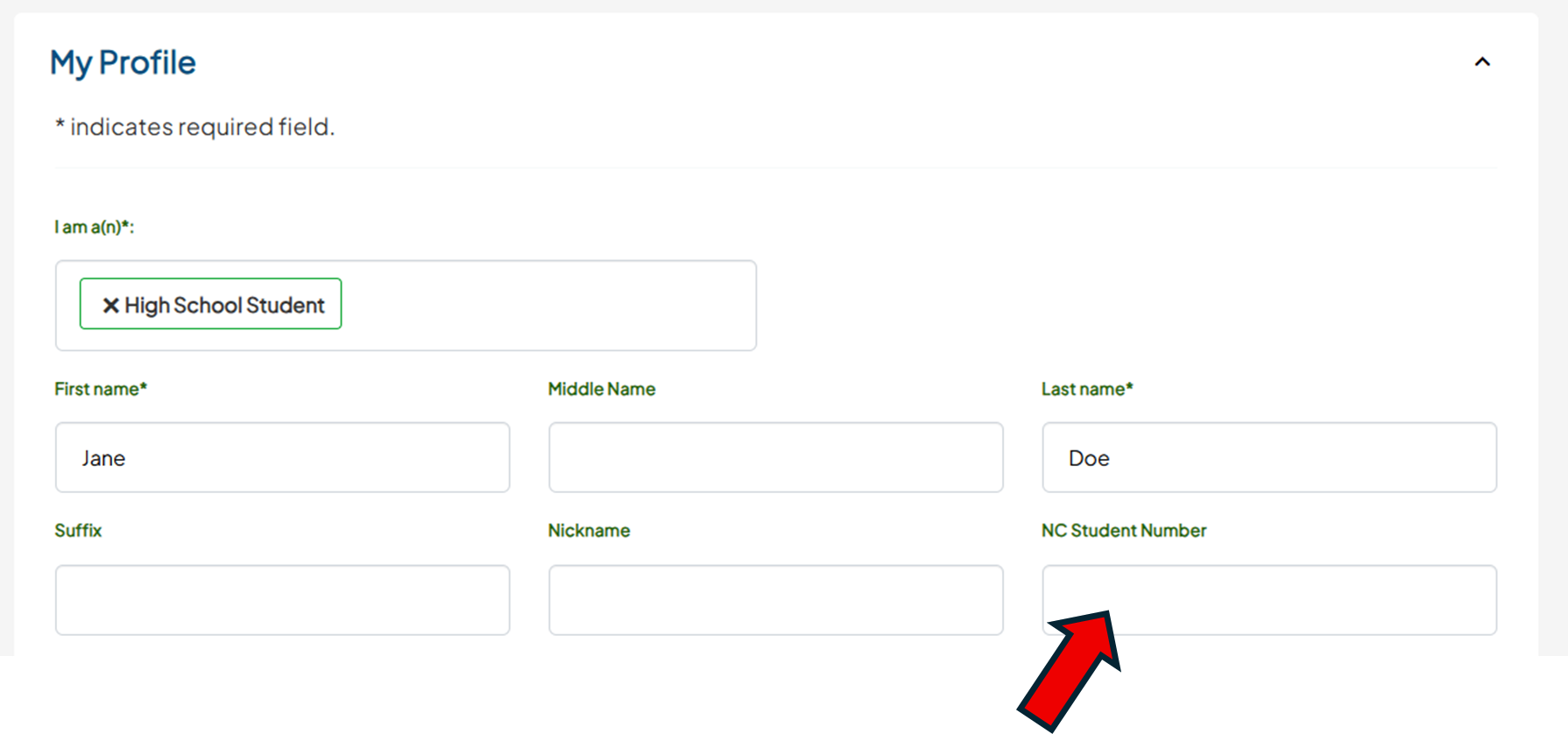
Student confirms their Student ID is entered
The student should look for the Student ID field. If it is blank, they should enter their NC school-issued Student ID and save.
What Happens to CFNC ProTools Reporting?
Educators can access career reports whether a student signs in with CFNC or NCEdCloud credentials. Students can use either CFNC or NCEdCloud credentials to access NCcareers — the information will be the same.
If students receive a "Multiple Accounts Found" message, refer to Section 3.
My Students Only Used NCEdCloud Credentials to Access NCcareers
Action Required to Enable Linkage
Students need to create a CFNC.org account and add their Student ID because:
- NCcareers reporting in CFNC ProTools requires a linked CFNC account.
- This ensures access to work completed on NCcareers after graduation.
Steps to Set Up a CFNC Account
Student creates a CFNC.org account
- Have the student go to CFNC.org
- Click the "Log In" button at the top right
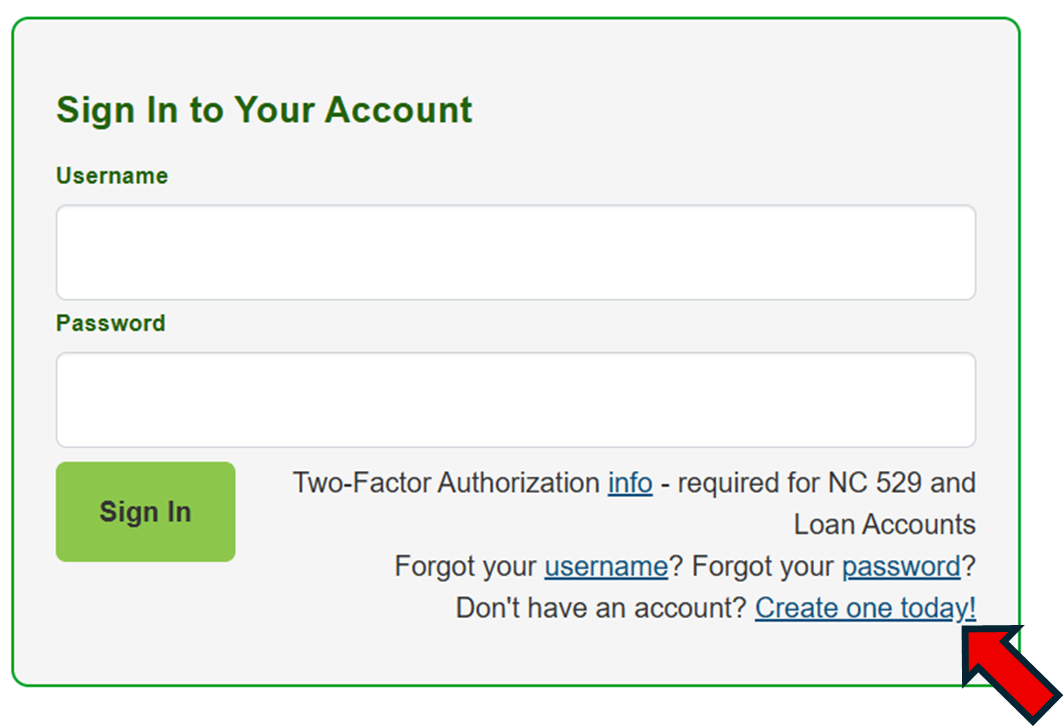
- Navigate to "Create one today!"
Student navigates to "My Profile" and adds their Student ID
- Click the profile icon at the top right and select My Profile.
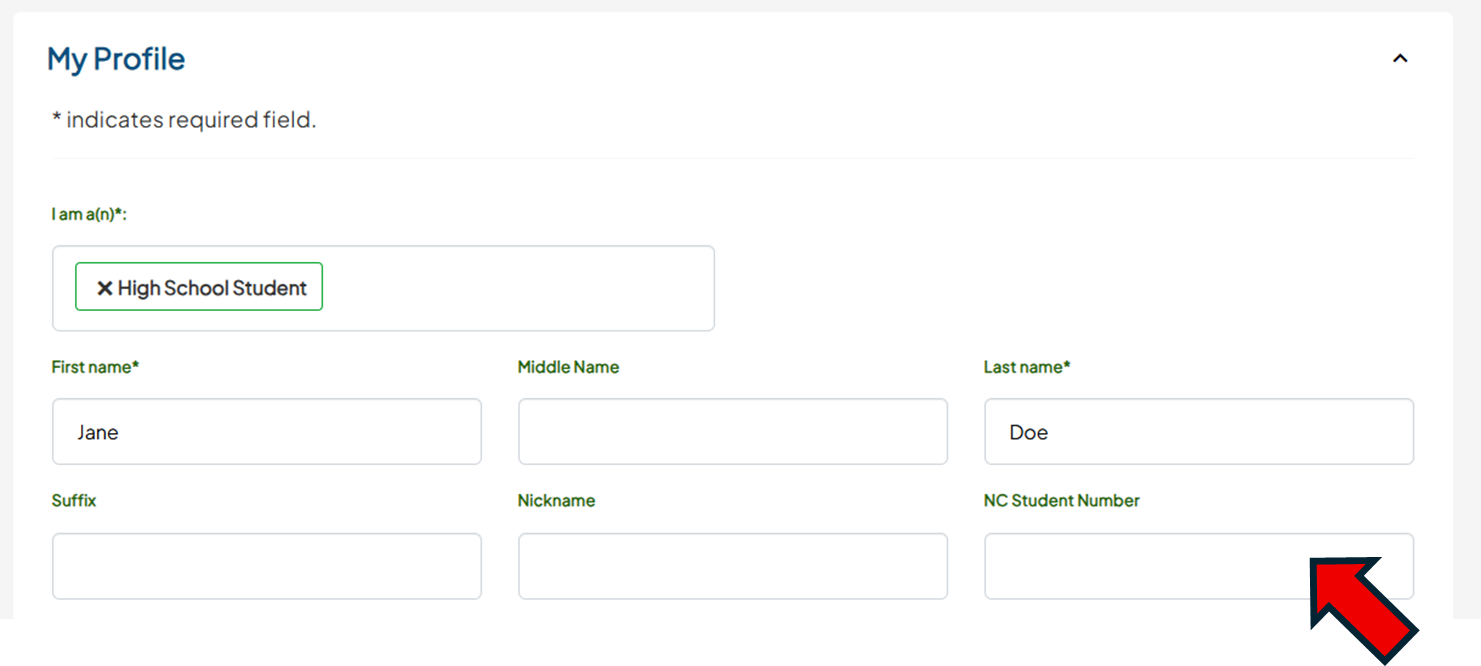
- Enter the NC school-issued Student ID in the Student ID field and save.
Student uses CFNC credentials to log in to NCcareers
Have the student log in using CFNC once to activate the account.
Student confirms both accounts are ready
Once the Student ID is saved and they've logged in using CFNC once, the student will be able to sign in to NCcareers.org with both CFNC and NCEdCloud credentials.
What If the Student Already Has a CFNC Account?
If a student already has a CFNC account but has never used it to log into NCcareers.org, there is no need to create a new account — just update the existing one with their Student ID.
What Happens to CFNC ProTools Reporting?
Educators can access career reports whether a student signs in with CFNC or NCEdCloud credentials. Students can use either CFNC or NCEdCloud credentials to access NCcareers — the information will be the same.
If students receive a "Multiple Accounts Found" message, refer to Section 3.
My Students Used Both CFNC & NCEdCloud Credentials or Are Seeing a "Multiple Accounts Found" Message
Why This Happens
If a student has previously signed in to NCcareers.org using both CFNC and NCEdCloud credentials, they may have accumulated saved work in two separate accounts. These students will be prompted to choose which account to keep active.
Step-by-Step: Helping a Student Link Their Accounts
Student signs in to NCcareers.org
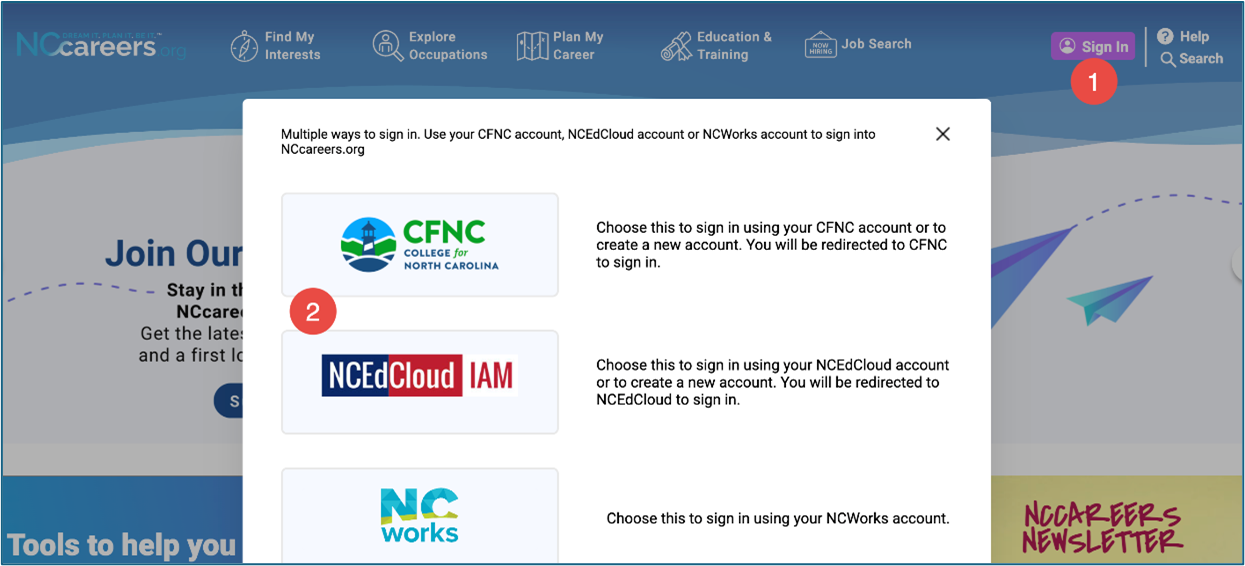
Have the student go to NCcareers.org and sign in. They can choose either CFNC or NCEdCloud to begin.
Student sees the "Multiple Accounts Found" message
If two accounts are linked to the same Student ID, the student will see a "Multiple Accounts Found" screen. This message appears when two accounts have not yet been connected.
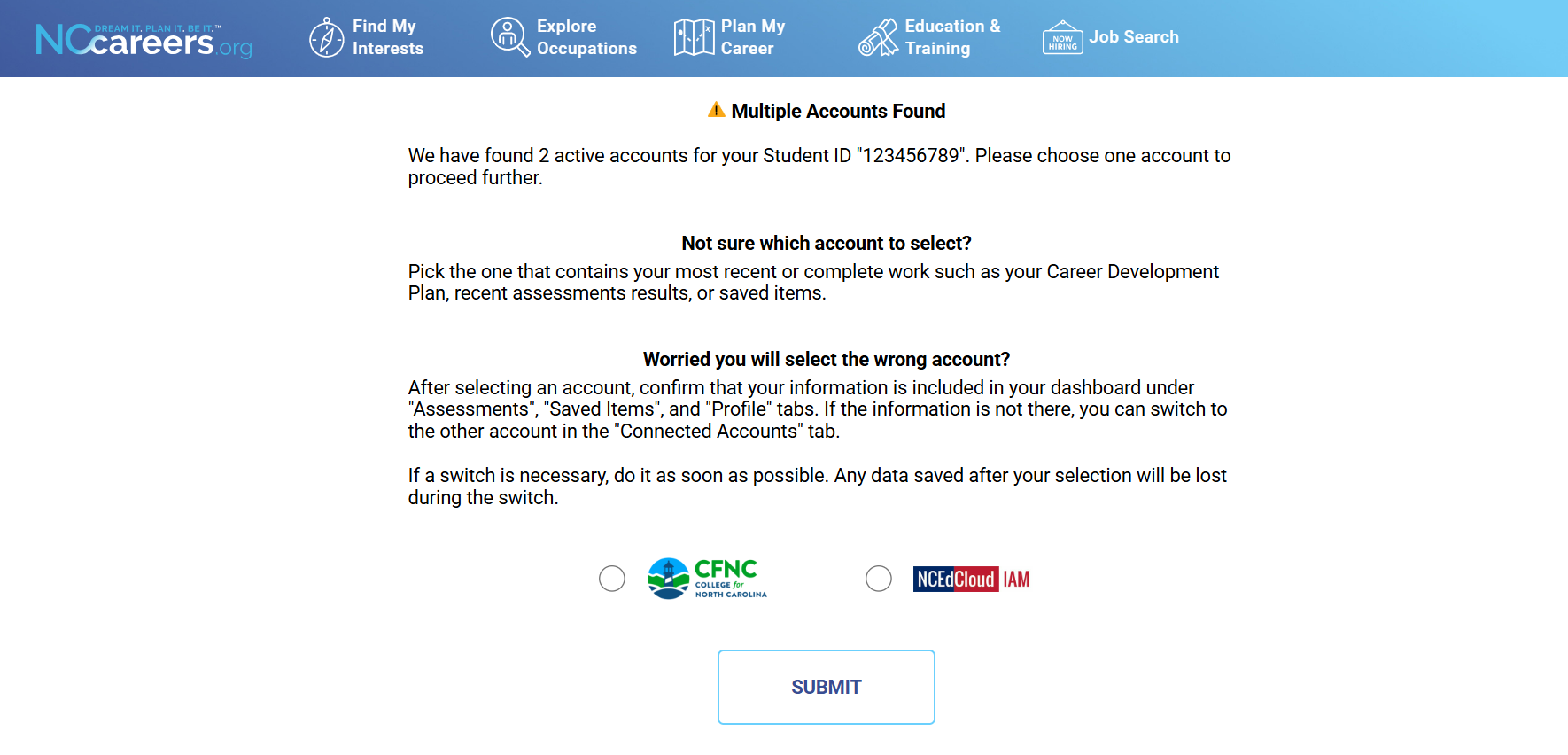
Help the student choose the correct account
The student will see both accounts and must select the one to keep. Guide them to choose the account with the most recent or complete information — such as their CDP, assessment results, or saved items. Once selected, the student clicks Submit.
If students chose the wrong account, don't worry! They will be able to switch the account via their Dashboard. More details on this below.
Confirm Linkage Occurred
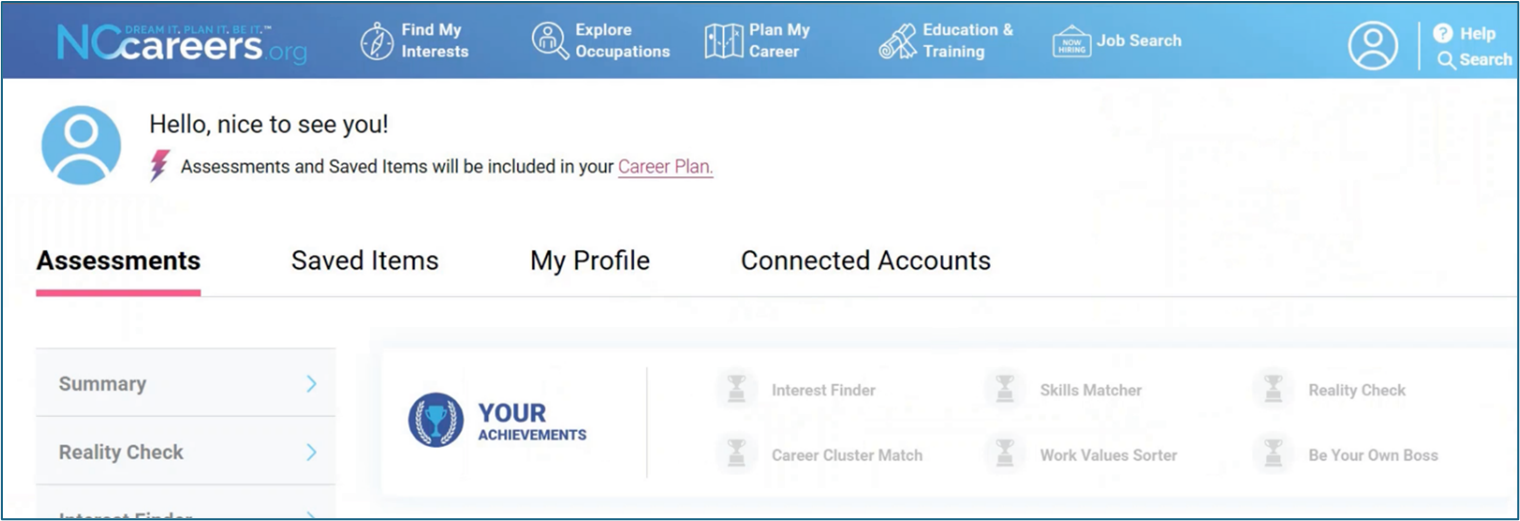
After completing the selection, the student can navigate to My Dashboard, by clicking on the icon on the top right where they can view Assessments, Saved Items, My Profile, and Connected Accounts.
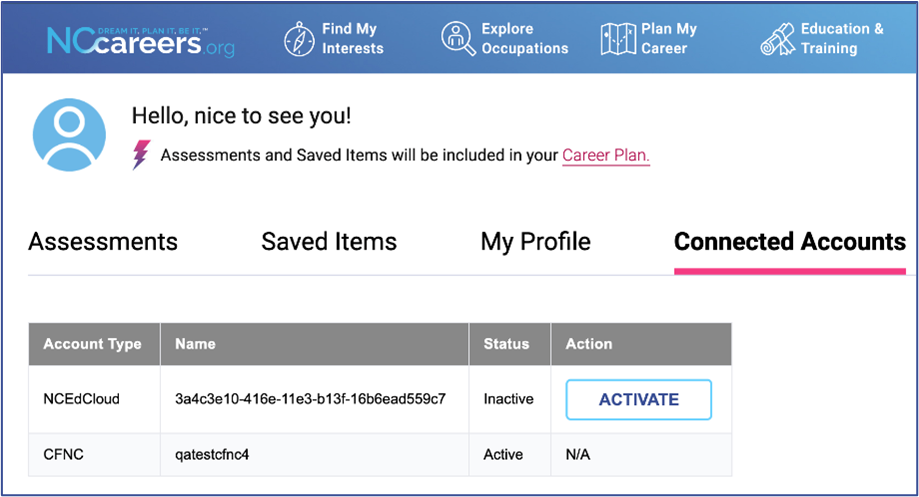
What If a Student Selected the Wrong Account?
Students can switch their selection from the Connected Accounts tab in their account settings.
What Happens to CFNC ProTools Reporting?
Educators can access career reports whether a student signs in with CFNC or NCEdCloud credentials. Students can use either CFNC or NCEdCloud credentials to access NCcareers — the information will be the same.
Frequently Asked Questions
Why didn't the student see the "Multiple Accounts Found" message? How can I confirm their accounts are connected?
The message only appears if the system finds two NCcareers.org accounts connected to the same Student ID. Ask the student to sign in using both methods — once with CFNC and once with NCEdCloud. If both logins lead to the same account with the same saved data, the accounts are successfully connected and no further action is needed.
The student does not see a "Connected Accounts" tab. Is there an issue?
No. The Connected Accounts tab only appears for users who had two separate NCcareers accounts and completed the account selection process. Students who only had a single account — or whose accounts were linked automatically — will not see this tab.
What if a student selected the wrong account?
Students can switch accounts from the Connected Accounts tab. However, any data saved after the original selection may be lost when switching. Encourage the student to switch as soon as possible, before completing additional work in NCcareers.org. (See Section 3.)
What if a student doesn't have a CFNC account?
The student should create one at CFNC.org and add their NC school-issued Student ID in the My Profile section. Students who only have an NCEdCloud account and no linked CFNC account will not appear in CFNC ProTools reporting until that link is established.
Will students lose their NCcareers data after graduation?
Students who have a linked CFNC account will retain access to their NCcareers.org data after graduation by using their CFNC credentials.
My student has their Student ID on their CFNC account, but I still can't pull reports for them.
1. Confirm that their current school is listed in the "School Connections" section of their CFNC account.
2. Ask your student to log in to NCcareers to enable data transfer.
3. If reports are still not showing up, please contact CFNC Pathways at cfnc@northcarolina.edu.